Spinning on Borrowed Time: The Five-Minute Drive Check That Saves Your CCTV Footage
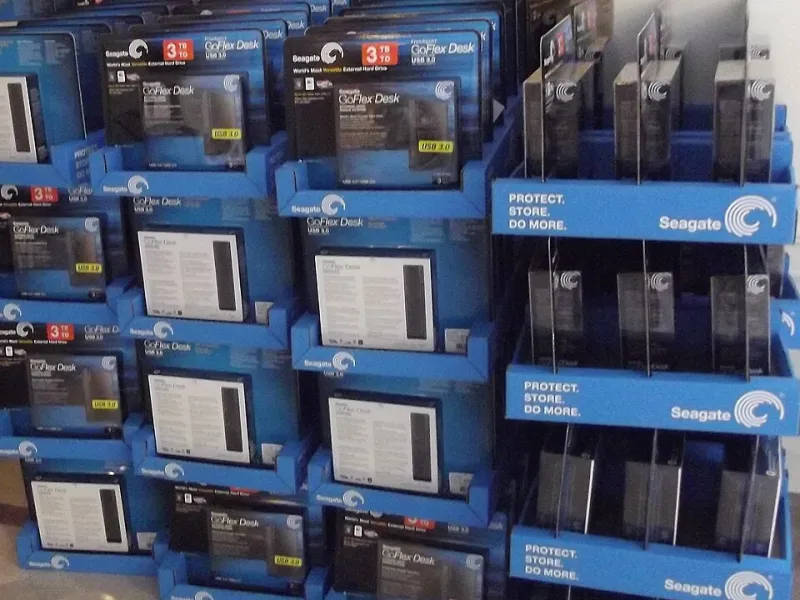
Photo: Edward, CC BY-SA 4.0, via Wikimedia Commons
Most people buying a CCTV system spend their attention on cameras. Lens width, night vision, megapixels, whether the doorbell model matches the porch. The recorder gets a glance. The hard drive inside it gets nothing at all. Yet when a bike disappears from a back garden, or a delivery van picks up a scrape, or the till comes up short on a Saturday, the camera is not really the thing you are relying on. The disk is.
An NVR or DVR is a small computer with one job it never gets to stop doing. It ingests video from several cameras at once, writes it to disk, and then — usually after a month or so — starts overwriting the oldest material to make room for the newest. That last part is the bit people forget. Your recorder is not a filing cabinet. It is a conveyor belt, and the drive is the belt.
Not all drives are built for the night shift
A desktop hard drive is designed for bursts of activity. You open a file, copy a folder, then it sits idle while you read your email. A surveillance drive is designed for the opposite: a steady, unbroken stream of writes, day and night, with several video feeds arriving at once and almost no quiet time. The two look identical in a shop listing. They behave very differently after eighteen months in a warm cupboard.
Surveillance-grade drives — the ones sold under names like Purple or SkyHawk — are rated for continuous operation and a stated annual workload measured in terabytes. They are also tuned to give up on a minor read error quickly rather than spending seconds trying to recover it, because in a recorder a stalled read means dropped frames. A desktop drive will often work in an NVR for a year or two and then begin to stutter, skip, and quietly lose chunks of the timeline. It rarely announces itself. It just gets worse.
What continuous recording actually does to a disk
The wear comes from several directions at once. The platters never stop turning during recording hours. The write head is constantly busy. The file system is repeatedly deleting the oldest footage to make space, which fragments the drive over time and makes the next write do more work. Add a fanless metal box under a shop counter, a British summer heatwave, and a cupboard with the door shut, and you have a drive running hotter than it would ever run in a laptop.
Heat is the quiet killer. A drive rated to 60°C may sit at 50°C in July with no obvious symptom, then start throwing errors in the autumn. By then the two-year warranty is often a distant memory and the footage from the incident has already gone.
The gaps that never set off an alarm
Here is the part that catches people out. A failing drive does not usually stop the recorder dead. More often, the NVR carries on as normal, the live view looks fine, and the recordings simply become patchy. A channel drops out for twenty minutes. Playback jumps. The timeline shows a thin grey line where footage should be.
Because the recorder is still powered, still connected, still showing pictures, nobody thinks to check. The problem is only discovered weeks later when someone asks for the clip from the night in question, and the answer is a polite shrug. Most NVRs will log a disk error somewhere in a submenu, but almost none will send you a text message about it unless you go and switch that option on.
A five-minute check, no specialist kit
You do not need to be an IT technician for this. Log into the recorder — the local monitor and mouse, or the web interface, or the phone app if it exposes storage settings — and find the storage or HDD menu.
First, look at capacity. If the drive is 2TB and the recorder says 1.2TB free, that is odd for a system that should be overwriting, and worth investigating. If it says zero free and 100% used with a healthy status, the overwrite is working normally.
Second, find the SMART data. Most recorders expose at least a basic version. The numbers that matter are Reallocated Sector Count, Current Pending Sector Count, and Power-On Hours. Reallocated sectors above zero is not automatically fatal, but a number that creeps up between checks is a drive on its way out. Pending sectors are worse. Power-on hours tell you how old the thing really is, which is useful when someone sold you a refurbished unit as new.
Third, do a playback test at random. Pick a time from three days ago that you have no reason to care about, and scrub through it. If it plays cleanly, your recording chain is working. If it stutters or skips, you have found the problem before it found you.
Finally, switch on error alerts. An email or app notification when the drive reports a fault is the single most useful setting on the whole recorder, and it is almost always off by default.
If you want a deeper read, power the unit down properly, take the drive out, and connect it to a PC with a free tool such as CrystalDiskInfo. It will show you the same SMART values in plainer language. Treat it gently, and do not do this on a carpet in a woolly jumper.
The quarterly routine that actually sticks
Ten minutes, four times a year, is enough. Put it in the calendar on the first Saturday of January, April, July and October. Open the storage menu, screenshot the SMART page to your phone, and compare it with the last one. Check free space. Play back an arbitrary clip. Confirm the alert settings are still on. Write the date on a note.
If your system is maintained under a contract, ask for those screenshots rather than a verbal assurance that it is all fine.
When the drive starts complaining
Replace it with a surveillance-grade drive of the same capacity or larger, from the recorder manufacturer's supported list. Format it inside the recorder, not on a PC, so the file system matches. Keep a note of the model and install date. And if the old drive held footage you would not want a stranger to see, wipe it or destroy it physically rather than leaving it in a drawer.
The camera gets the credit, but the disk does the remembering. Give it ten minutes a quarter and it will repay you on the one night you actually need it.